Friday, 18 November 2011

Assignment 2

I received a phone call from my friend asking for my help. Her son is visually impaired and she explained that he has trouble using the software on his computer in its default setup.


I am going to minimise the ribbon so that it will only appear when the user clicks on the menu name.

Before ribbon is minimsed
After ribbon is minimised


I am going to add Font Style to the Quick Access Toolbar.

Choosing more commands for the quick access toolbar
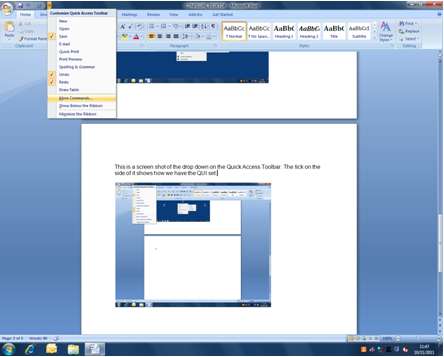


Adding Font Style to QAT

Font Style added to toolbar


I am going to rearrange the icons on the desktop.

Before icons are rearranged

Icons arranged


Icons made larger


I am going to show printscreens of using the magnifier, the lens and the dock.

Opening the magnifier

Using the magnifier


Opening the Lens

Using the Lens
Opening the Dock

Using the Dock


I am going to change the default display to a higher resolution.


I am going to open the Narrator and setup the voice settings


                                                                  Opening the Narrator


Using the voice settings on the Narrator


The changes I have made to MS Word, the desktop and the display will help my friend’s son to see the screen more clearly and make using a computer a lot easier for him with less hassle.

By minimising the ribbon he now has less to try to look at and there is nothing confusing him as to what he has to click on.
By adding Font Style to the Quick Access Toolbar it means he only has to look at the one place to change the style of the font. As he is visually impaired this means he does not have to strain to look for it along the ribbon.
By rearranging the icons and making them larger can help him see them more clearly.
Using the magnifier is great for visually impaired people this magnifies the words and the screen to a level that suits the individual. It provides a minimum level of functionality.
The lens are also of great benefit as when he scrolls over words or pictures they will appear beneath the lens at a much larger size. Unlike the magnifier if he just wants to look at a certain paragraph or a certain picture he can do so placing the lens over that picture or paragraph.
When he uses the dock this will make the screen larger and will largen the ribbon so it is more clearly for him to choose the options on the ribbon for example the colour of his font or if he wished to insert a picture or graph.
Changing the default display by opening the narrator and using the voice setting will highly benefit him as when he is really struggling to see the screen and understand what he is looking at or he has trouble seeing what he wrote and wished to spell check it the narrator will say the words and sentence to him.

Computer software can be used to display bright attractive moving images which can encourage children with visual impairments to make effective use of their vision.
There is a wide range of software and hardware devices that can help the visually impaired. Purpose made portable Braille computers and Braille input and output devices for standard computers are one of the many electronic devices specifically designed for someone with a visual impairment.

Thursday, 27 October 2011

Hardware Components

               Processor

  • A processor performs the arithmetical, logical, and input/output operations of the computer system.
  • It has four functions fetch, decode, execute and write back.

Memory
Ram
  • RAM stands for Random Access Memory.
  • It is a form of computer data storage.
  • The two types of RAM are Static Ram and Dynamic RAM.

Input/Output Devices


Input Devices

MOUSE
  • A mouse is a pointing device that consists of an object held under one of the users hands with one or two buttons and a scrolling wheel.
  • The mouse's motions translates into a motion of cursor on a display.
KEYBOARD

The keyboard remains the most commonly used for direct  input into computers
A keyboard has characters engraved or printed on the keys and each press of a key corresponds to a single symbol
Most keyboard keys produce letters, numbers or signs, others keys produce actions or commands


WEBCAM


Tablet


  • A tablet allows users to create and draw images, watch videos play games listen to music.
  • The tablet is usually used by business men.


                Microphone


  • A microphone converts sounds into electrical waves.
  • Microphones are used in telephones, kareoke systems, tape recorders etc. For webcam it is essential to have a microphone so you can talk to the person you are sharing the webchat with and so that the person can hear you.


A  webcam is a camera that is connected to a computer, either directly or wirelessly
                    
              
                 Webcam
      
  • They are known for their low costs and flexibility
  • They can be used for business and pleasure.


         TOUCH SCREEN
 
A Touch Screen is a visual display that can detect the presence and location of a touch within the display area.
It works by touching the screen with a finger or hand.
             SCANNER
 A scanner is a device that scans images, printed text, handwriting or an object and changes it to a digital image.
    GAMES CONTROLLER
A games controller is used with games or entertainment  systems used to control an object or character. 
http://www.youtube.com/watch?v=9MOIkSceV6k


         Output Devices

                   Printer
  • A printer is able to print the data stored in a computer it is connected to.
  • It can print documents, pictures and graphics usually on paper.
  • It is connected to a computer through a USB device.
  • Your images or data can be printed in black or colour depending on ur printer.

                    
Monitor
  • A monitor is a screen that displays output from a computer.
  • It allows the user to see programs they are vieweing on the computer.
  • It shows images, videos, animations and graphics.


Sound
  • Speakers are already installed into your computer but have low quality sound.
  • You can purchase better speakers and plug them into your computer for better clearer sound.
  • Speakers features usually consist of a LED pwer indicator, a headphone jack, controls for volume and a remote volume control.

Data Flow Diagram

Software


Systems Software


Systems Software are files and programs that make up a computers operating system. Microsoft Windows XP is an example of system software. Compilers, assembers, file management tools, debuggers and system utilities are all part of the system software. This software is installed to your computer and can be updating by running programs such as "Windows Update and "Software Update". Operating system is the most important program that runs on a computer. It is a set of computer programs that manage the hardware and software of computer devices. There are four applications of an operating system which are multi-user, multi-processing, multi-threading, multi-tasking and real time. 

             Applications Software


Application software is certain software created for a certain   purpose. Types of application software are office, educational, bussiness and industrial, communication software, games and specialist. Example of Office is Excel, on this program you can create spreadsheets, charts and graphs to make work more appealling and easier to read. Word Processing allows you to create documents such as informal, formal, short, extended etc. Also communication sofware which is for example web browser and email. On web browser you can search the internet, make blogs, add opinions and comments. Join social networking sites, fill in forms, do shopping. In email you can write letters to friends, family, work colleagues or your boss. You can attach files, images and videos.


Software Utilities


A firewall is a tool or a number of tools made usually to protect networks from unapproved access. Many PC’s operating system has firewall built in to protect against threats from the internet. There are several types of firewall features such as packet filter, application gateway, circuit level gateway and proxy server. Some of the things that firewall can not prevent are e-mail viruses. A firewall can’t see what is inside an email so it can’t protect you from these types of viruses. By using an up-to-date antivirus program and being careful about opening file attachments and clicking links in messages, you should be able to avoid polluting your computer with a virus from nasty e‑mail.

Another form of security is antivirus which is used to prevent, detect and remove malware. This form of antivirus can be bought in any stores that computers can be bought. It comes in the form of a disc were the anti-virus has to be uploaded on to your computer. It will last up to a year and a new one will then need to be installed. It is important that you update it regularly and scan your computer at least once a day. There are a number of Antiviruses available such as Kaspersky, Norton, Bit Defender, Mc Afee, Webroot and many more.


Thursday, 13 October 2011

Storage Devices

            Storage Devices


                       Hard Disc Drive
                      
  • A hard disc drive HDD is a magnetic storage device.
  • Different hard drives can hold a different number of MB and GB.
  • You can store anything on these devices from pictures, to documents, to videos and movies.
  • They can be used on any computer and are powered by charging with a plug.


Memory Stick/Flash Drive
  • Memory sticks/flasdrive are ideal for transferring data between two PCs.
  •  They are small and convenient removable and data can be added and removed from it.
  • The operating systems that support its mass storage are Linux, Mac OS X, Windows and more.


   CD ROM
  • CD-ROM stands for Compact Disc Read Only Memory.
  • A CD-ROM can store the same amount of information as 700 floppy discs.
  • They can store graphics, sound and video.
  • All computers come with a CD-ROM player were it can be inserted.
  • The only disadvantage of a CD-ROM is that the information stored on it can not be erased.


Friday, 7 October 2011

Network Connections

Devices For Network Connection
3G 
 
The 3G network is the third generation of networking and telecommunications.
The main advantages of 3G is that it has faster data transmission as it uses a wider radio spectrum. It has better network characters and more modern network services.

4G        
     •4G is short for fourth generation wireless.  It is a form of technology that can be used with mobile devices such as mobile phones, wireless computers and other mobile devices.
     It gives users faster access to the internet than 3G.
     It also gives new users the ability to access High definition  video and high data rate wireless channels through mobile devices.


    Bluetooth/Wireless

Bluetooth is a wireless device for transferring data over short distances. It is very secure and can connect up to 8 devices at one time. The device can be plugged into computer, cameras, mobile phones and faxes. Example of Bluetooth is when you send files from one mobile phone to the other for example pictures, music and videos.
Wireless networks apply radio waves and microwaves to sustain communication channels between computers and other network devices. A wireless network has its advantages and disadvantages. The advantages are mobility and no hassle with unsightly cables.
  Network Interface Cards
A network interface card is a card that is mounted into a computer so that it can be connected to a network. 
 Some NIC cards will work with wired connections while others with wireless connections
 NIC’s are already installed in your computer by the manufacturer